How to Open a JSON File — and What's Inside One
A JSON file (.json) is one of the world's most ubiquitous data formats, powering web settings, cloud archives, and structured document extractions. If you just downloaded a mystery file and need to know what is a JSON file or how to open a JSON file on your computer, you do not need expensive software or technical credentials. This comprehensive guide covers what a JSON file is, how to open JSON files on Windows, Mac, mobile devices, and directly inside your web browser, what is inside the curly brackets { ... }, and how to convert unstructured documents like PDFs into clean, structured JSON.
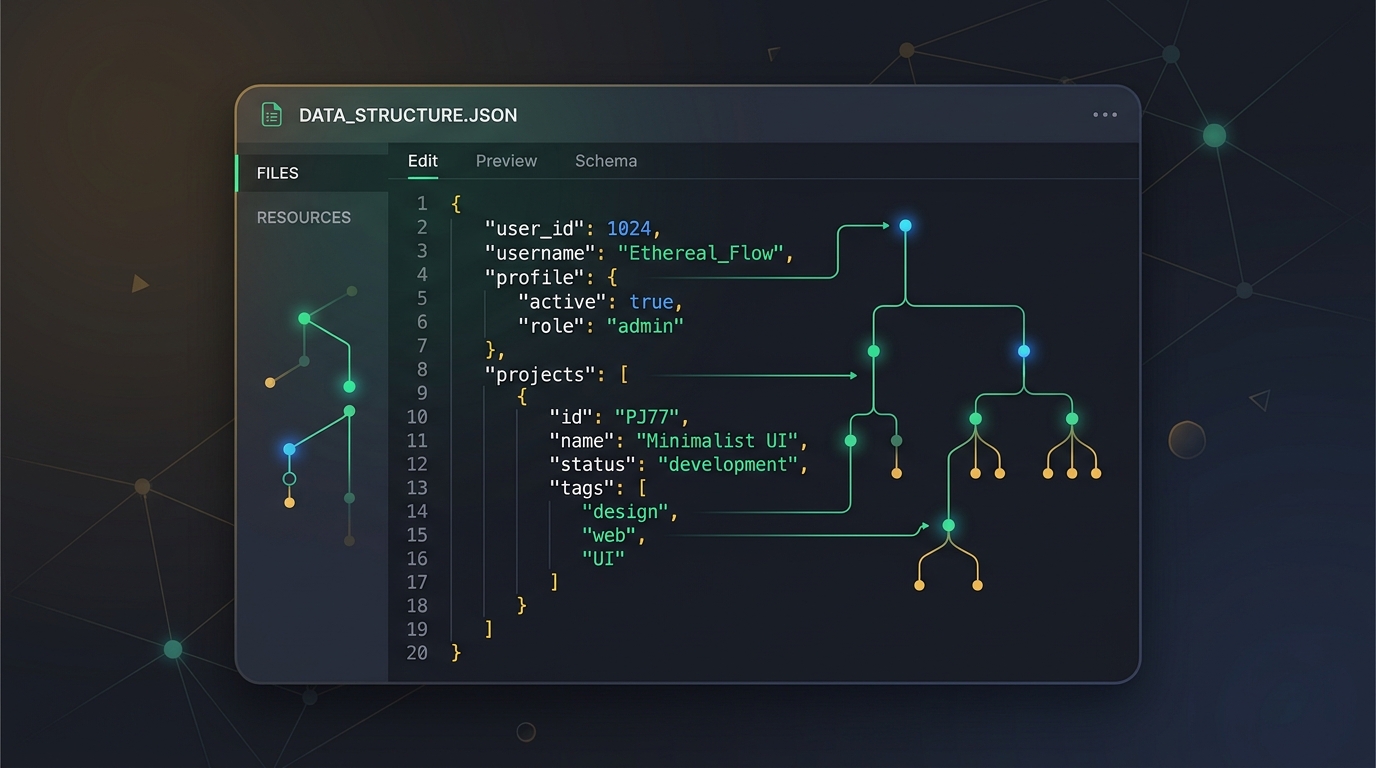
1. What Is a JSON File? The Universal Data Standard
A JSON file is a lightweight, human-readable plain text file that stores structured data using the JavaScript Object Notation (.json) standard. Despite having "JavaScript" in its name, JSON is completely language-independent: virtually every modern software system, web browser, database, and operating system can read, open, and write JSON files natively.
Specified under international standards RFC 8259 and ECMA-404, JSON organizes information into intuitive collections of key-value pairs (enclosed in curly braces `{ ... }`) and ordered lists (enclosed in square brackets `[ ... ]`).
1.1 The Definition & Origins: JavaScript Object Notation (.json)
JSON was popularized in the early 2000s by software pioneer Douglas Crockford. Prior to JSON, exchanging structured information between computers relied on XML (Extensible Markup Language), which was notoriously verbose, cluttered with opening and closing tags, and difficult for humans to quickly scan.
Because JSON uses clean punctuation already familiar to anyone who has seen a list or key-value dictionary, it rapidly became the gold standard for data exchange across the global software industry.
1.2 Why JSON Replaced XML and Proprietary Binary Formats
• Minimalist footprint: JSON strips away repetitive XML closing tags (e.g., `<item>content</item>` becomes `"item": "content"`), reducing file sizes by 30% to 50%.
• Native browser parsing: Every web browser includes built-in engines (`JSON.parse()` and `JSON.stringify()`) that process JSON in microseconds without third-party plugins.
• Human readable & machine parseable: Unlike binary files (.docx, .pdf, or compiled databases), you can inspect a JSON file directly with your eyes.
1.3 Common Types of JSON Files You Encounter Daily
You might encounter JSON files in everyday situations without realizing it: software configurations (`package.json`, `tsconfig.json`, VS Code `settings.json`), data backups exported from platforms like Spotify or Google Takeout, AI conversational history archives, and structured document data extractions exported from converters like FileMarkd.
A JSON file contains pure plain text (usually encoded in UTF-8). You can change the file extension from .json to .txt and open it in any text editor on Earth without damaging the underlying data.
2. How to Open a JSON File on Windows, Mac, Linux & Web Browsers
Because JSON files are plain text, you do not need proprietary or expensive software to open JSON file packages. Depending on whether you want a quick glance or advanced search and editing, here are the easiest ways to open a JSON file on any device.
2.1 How to Open JSON Files in Any Web Browser (Chrome, Firefox, Safari, Edge)
The fastest way to view a JSON file without installing anything is inside your everyday web browser:
1. Open a blank new tab in Google Chrome, Mozilla Firefox, Apple Safari, or Microsoft Edge.
2. Drag and drop your `.json` file from your desktop or folder directly into the browser window.
3. Modern browsers (including Chrome 117+ and Firefox) automatically format the text with syntax highlighting, collapsible nodes, and a search filter.
2.2 How to Open a JSON File on Windows 11 & Windows 10
Method 1 — Built-in Windows Notepad (Fastest):
Right-click your `.json` file > choose "Open with" > select "Notepad". Windows Notepad displays the raw text immediately.
Method 2 — Visual Studio Code (Best for Large Files & Formatting):
If you need syntax color coding, collapsible tree views, or automatic indentation, install the Visual Studio Code editor. Right-click the file and select "Open with Code". Press Shift + Alt + F to instantly beautify and indent minified JSON.
Method 3 — Notepad++:
A lightweight favorite among Windows power users. With the JSTool plugin installed, you can format and inspect massive multi-megabyte JSON files without lag.
2.3 How to Open a JSON File on Mac (macOS)
Method 1 — macOS Quick Look (No Clicks Needed):
Click once on the `.json` file in Finder, then tap the Spacebar on your keyboard. macOS Quick Look opens an instant preview window showing the document contents.
Method 2 — TextEdit:
Right-click the file > "Open With" > "TextEdit". Ensure TextEdit is in plain text mode (Format > Make Plain Text).
Method 3 — VS Code or BBEdit:
For heavy data inspection, search, and JSON schema validation, open the file in VS Code or BBEdit on macOS.
2.4 How to Open JSON Files on iPhone, iPad & Android
On iOS (iPhone/iPad): Open the built-in "Files" app, navigate to your downloaded JSON file, and tap it. iOS renders a native text preview. For editing, use apps like Runestone Text Editor or Documents by Readdle.
On Android: Open the "Files by Google" app or download a text viewer such as QuickEdit or DroidEdit from the Google Play Store.
3. What's Inside a JSON File? Syntax, Hierarchy & Data Types
When you open a JSON file for the first time, you will see pairs of words wrapped in quotes, colons, brackets, and commas. While it looks like code at first glance, JSON syntax is remarkably straightforward once you understand its building blocks.
3.1 The 6 Native JSON Data Types Explained
Every value inside a valid JSON file belongs to one of exactly six data types:
1. String: Plain text wrapped in double quotation marks (e.g., `"title": "Annual Report"`).
2. Number: Integer or floating-point numbers without quotes (e.g., `"page_count": 42`, `"tax_rate": 0.0825`).
3. Boolean: Either literal `true` or `false` (no quotation marks).
4. Null: Represents an empty or nonexistent value using literal `null`.
5. Object: An unordered collection of key-value pairs wrapped in curly braces `{ ... }`.
6. Array: An ordered list of values wrapped in square brackets `[ ... ]` separated by commas.
3.2 Anatomy of a Real-World Structured Document JSON File
Here is what a clean document extraction looks like when converting a business report into structured JSON via FileMarkd:
JSON is strict: 1) Keys must always be wrapped in double quotes ("key", never single quotes); 2) Trailing commas after the last item in a list or object are forbidden; 3) Comments (like // or /* */) are not supported in standard JSON.
{
  "document_id": "rep_2026_q3_financial",
  "title": "Quarterly Financial Performance Overview",
  "author": "Corporate Strategy Group",
  "generated_at": "2026-09-25T08:00:00Z",
  "verified": true,
  "pages_processed": 14,
  "sections": [
    {
      "heading": "Operating Margin Highlights",
      "level": 2,
      "content": "Consolidated operating margin expanded by 140 basis points year-over-year.",
      "key_metrics": {
        "gross_revenue_usd": 12850000,
        "operating_expenses_usd": 8920000,
        "target_met": true
      }
    }
  ],
  "tags": ["finance", "quarterly-report", "q3-2026"]
}
4. Technical Benchmark: Methods to Open and Edit JSON Files
Depending on the size of your JSON file and your workflow needs, choose the tool that fits your technical criteria:
| Tool / Environment | Platform | Syntax Highlighting | Auto-Formatting | Large File Support (>50MB) | Best Suited For |
|---|---|---|---|---|---|
| Web Browser (Chrome/Firefox) | All (Zero Install) | Yes (Built-in) | Yes (Collapsible) | Moderate | Instant quick inspection |
| Windows Notepad / Mac TextEdit | Windows / macOS | No (Monochrome) | No (Manual only) | Poor (Freezes on huge files) | Quick text edits & emergencies |
| Visual Studio Code | Win / Mac / Linux | Yes (Rich colors) | Yes (Shift+Alt+F) | Excellent (Fast streaming) | Developers & heavy data analysis |
| Notepad++ / BBEdit | Windows / macOS | Yes (Color rules) | Yes (Via plugins) | High (Lightweight footprint) | System administrators & log files |
| Python script (json.load) | Cross-platform CLI | N/A (Console) | Yes (json.dumps indent=2) | Unlimited (Chunked reading) | Automated batch data processing |
5. How to Format, Beautify, and Validate Broken JSON Files
One of the most frustrating experiences when opening a JSON file is encountering a "minified" file: thousands of lines squished into a single giant wall of text with zero line breaks or indentations.
5.1 Beautifying Minified JSON in 3 Seconds
• In Visual Studio Code: Open the minified file and press Shift + Alt + F (Windows) or Shift + Option + F (Mac). VS Code immediately indents every bracket and comma.
• In Chrome / Firefox: Simply drag the file into your browser; the native JSON viewer automatically renders the minified content as an expandable tree.
• With Python: Open your terminal and run `python -m json.tool input.json pretty.json`. Python formats the entire file with standard 4-space indentation.
5.2 Catching and Fixing Common JSON Syntax Errors
If your application throws an "Unexpected token" or "Invalid JSON" error, check for these three common culprits:
1. Trailing Comma: Check the last element before closing `}` or `]`. If there is a dangling comma `,`, delete it.
2. Single Quotes: Replace all single quotes (`'key'`) with standard double quotes (`"key"`).
3. Unescaped Characters: Backslashes (`\`) and internal quotation marks must be escaped as `\\` or `\"`.
# Format and validate any JSON file using Python standard library
import json

def validate_and_format_json(file_path: str):
    try:
        with open(file_path, "r", encoding="utf-8") as f:
            data = json.load(f)

        # Output clean, beautifully formatted JSON with 2-space indentation
        formatted_json = json.dumps(data, indent=2, ensure_ascii=False)
        print("JSON is valid! Preview:")
        print(formatted_json[:300] + "...")
        return True
    except json.JSONDecodeError as err:
        print(f"Syntax error in JSON file: {err}")
        return False

# Example usage
validate_and_format_json("sample_data.json")
6. Converting Unstructured Documents (PDF, Word, Excel) into Structured JSON
Traditionally, extracting tables, text blocks, and metadata from PDFs or Word documents required painful copy-pasting or brittle regular expressions. Today, converting documents into structured JSON is instant and automated.
6.1 Why Convert Documents into JSON?
• Relational and NoSQL Databases: Ingest business contracts, product catalogs, and invoices directly into PostgreSQL (JSONB columns) or MongoDB without manual data entry.
• AI & RAG Knowledge Workflows: Structured JSON enables vector search chunking that preserves section levels, page numbers, and author tags alongside raw text.
• Spreadsheet and Analysis Automation: Load document tables into Python Pandas DataFrames or business intelligence dashboards with a single command.
6.2 Instant Document to JSON Conversion with FileMarkd
With FileMarkd's document to JSON converter, you can turn PDFs, Word documents (.docx), and spreadsheets (.xlsx) into clean, valid structured JSON online:
1. Drag your document into the online converter.
2. Select "Structured JSON (.json)" as your desired output format.
3. FileMarkd parses nested sections, headers, and tabular arrays with AI layout intelligence.
4. Download the generated `.json` file or copy the raw JSON text directly to your clipboard.
Prefer Markdown output? See PDF → Markdown, Word → Markdown, and Excel → Markdown.
7. Summary & Quick Reference Checklist
Opening a JSON file is as simple as double-clicking it in your favorite text editor or dragging it into a browser tab. Because it is universal plain text, you can inspect it, format it, and store structured data with total confidence across any device or operating system.
Ready to transform your PDFs, Word documents, or spreadsheets into structured JSON files? Try FileMarkd Document to JSON today — directly in your browser with zero registration required. Curious about the Markdown side of the format? Start with What Is a Markdown File?.
7.1 Quick Steps to Open Any JSON File
• Quickest: Drag and drop the `.json` file into Google Chrome or Mozilla Firefox.
• Windows: Right-click > Open With > Notepad (or VS Code for advanced viewing).
• Mac: Select file > press Spacebar for macOS Quick Look preview.
• Convert Docs: Use FileMarkd Document to JSON to turn PDFs and Word documents into typed JSON schemas.